Making a Style System similar to Devil May Cry in Unity
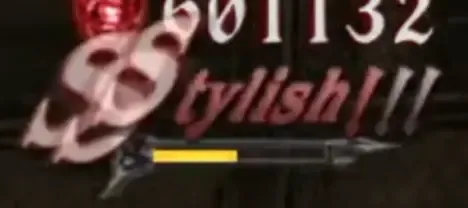
This blog focuses on keeping the structure simple. The code snippets below are simplified versions of my actual game code, they are meant to explain the core ideas so you can build a system that fits your own project.
1. Style Manager.
First, let’s create a StyleManager script to manage style points, ranks and UI.
Then we need a value for the Style Points to keep track of.
And then 3 functions to increase or decrease the Style points:
- AddPoints(). To increase points in an instant, such as collecting something.
- RemovePoints(). To decrease points in an instant, such as taking dmg.
- Update(). To decrease the style points slowly while playing.
using UnityEngine;public class StyleManager : MonoBehaviour{    public static StyleManager Ins;    [SerializeField] float decayRate = 50f;
    void Awake()    {     //Singleton for easy access by other scripts.     if(Ins != null){    Destroy(gameObject);return;   }        Ins = this;    }

    public float currentStylePoints;
    public void AddPoints(int amount)    {        currentStylePoints += amount;    }
    public void RemovePoints(int amount)    {        currentStylePoints -= amount;    }
    void Update()    {        currentStylePoints = Mathf.Max(0, currentStylePoints - (decayRate * Time.deltaTime));    }}
2. Style Sources
A. Collectables
Now let’s start with simply making collectables give Style Points.
You could just do this, but it’s hard to manage and make things spaghetti when the time goes on.
public class CollectableItem : MonoBehaviour{ public void Collect() { StyleManager.Ins.AddPoints(100); }}Instead, we need to make a Combo Table to store all of our combos and a Combo Dictionary to define it in the Manager script. Like this:
using UnityEngine;public class StyleManager : MonoBehaviour{ private Dictionary<string, int> comboTable = new Dictionary<string, int>(); //Rest of the code}For the table you can use anything as long as you can read and extract the data. A CSV file, scriptable object with an editor or just edit it directly on the inspector in the StyleManager script. Make sure it’s something you can edit easily. I chose to use a CSV file and read it once when the game starts and fill the Combo list with it.
collect_orb,100kill_enemy,500kill_boss,2000skill_sword,200I also added some additional combos for future use.
And this is a function to read “ComboTable.csv” file:
using UnityEngine;public class StyleManager : MonoBehaviour{  private Dictionary<string, int> comboTable = new Dictionary<string, int>();
  void Awake(){//rest of the code    LoadCombos();     }
  void LoadCombos(){      TextAsset csvData = Resources.Load<TextAsset>("ComboTable");      if (csvData != null)      {          string[] lines = csvData.text.Split('\n');          foreach (string line in lines)          {              if (string.IsNullOrWhiteSpace(line)) continue;              string[] values = line.Split(',');              if (values.Length >= 2)              {                  comboTable[values[0].Trim()] = int.Parse(values[1].Trim());              }          }      }   }  //Rest of the code...}
Now we need to find the correct combo from the list and give player points based on that.
using UnityEngine;public class StyleManager : MonoBehaviour{  private Dictionary<string, int> comboTable = new Dictionary<string, int>();
  public void CommitCombo(string comboID){    //Find the correct combo.    if (comboTable.TryGetValue(comboID, out int points)){      AddPoints(points);    } else {      Debug.LogError(comboID + " couldn't find in the combo table");    }  }
  //Rest of the code}
And this will be the Collectables script will look like:
public class CollectableItem : MonoBehaviour{ public string StyleID; public void Collect() { StyleManager.Ins.CommitCombo(StyleID); }}B. Combos
Now, to trigger a certain style based on attack we need to use the attack type from the player’s weapon.
What we want is, the attack type -lets say sword_skill for example- to carry over enemy’s taking DMG script then carry over the style manager, there it will check the list of pre-existing styles and give the player corresponding style.
Player Weapon code:
public class Weapon: MonoBehaviour{  public void Shoot(){    RaycastHit hit;    if (Physics.Raycast(transform.position, transform.forward, out hit))    {      EnemyDamage enemy = hit.collider.GetComponent<EnemyDamage>();      if (enemy != null)      {        enemy.TakeDamage(10, "skill_sword");      }    }  }
  //Rest of the code}
Enemy taking damage code:
public class EnemyDamage: MonoBehaviour{  public int HP = 100;  public void TakeDamage(int dmg, string attackType){    HP -= dmg;
    StyleManager.Ins.CommitCombo(attackType);  }
  //Rest of the code}
This alone triggers lots of styles. But to get more styles, especially from enemies, we need to add another function in Style manager. The main CommitCombo function just adds corresponding Style’s points into the main score. Now we’ll create a new function that the enemies will call when it takes damage.
Then it will still call the CommitCombos again, but since it is a different tunnel we can use it to gain combos from enemy status as well.
For example, if an enemy dies we can give players some style points from there as well. And even track how much enemy they killed to give them kill combos too.
Or if an enemy dies in a certain way, like being in midair, the player gains “air_shot” combo as well.
Style manager:
using UnityEngine;public class StyleManager : MonoBehaviour{  //Rest of the code
  public void EnemyCombo(int dmg, bool isDead, string comboID){    //Gain points from dmg    AddPoints(dmg);
    //Count enemy deathsif(isDead) CountEnemyDeath();
//Trigger Style CombosCommitCombo(comboID);  }
  public int KillCombos = 0;
  public void CountEnemyDeath(){    KillCombos += 1;    if(KillCombos >= 5){      CommitCombo("kill_multi");}else {  CommitCombo("kill_" + KillCombos.ToString());}}
  //Rest of the code}
Enemy code:
public class EnemyDamage: MonoBehaviour{ public void TakeDamage(int dmg, string attackType){ StyleManager.Ins.EnemyCombo(dmg, HP<= 0, attackType); } //Rest of the code}I did send damage into points as well. So players can get additional points from there as well, so we don’t need to add styles for every attack, only for significant skills.
This is what I prefer to do, if your game is different then you can adjust the system based on that.
If things get complicated for your game, such as “If X enemy dies in midair with this specific attack and has less than -100 Hp left then trigger this combo instead”, then you might want to create a table instead. Where each column is a status an enemy can have, plus which style it triggers.
3. Punishment
Players can spam certain skills over and over again to farm style points. Which then defeats the whole point of measuring the players performance.
To fix this, we need to punish players by decreasing the amount of points they earn in that way.
Let’s say, players are using sword_skill to farm points; we either can reduce the sword’s points, reduce only points from that one skill or something else depending on what type of game you are making.
I chose to reduce only a certain skill’s style point instead. In my game, sometimes players forget to use skills and only use normal attacks, so this is my way of balancing things.
Style manager:
public class StyleManager : MonoBehaviour{  //Rest of the code  private Dictionary<string, int> comboTable = new Dictionary<string, int>();
  List<string> LastCombos = new List<string>();
  public void CommitCombo(string comboID){    //Find the correct combo.    if (!comboTable.TryGetValue(comboID, out int points)){      Debug.LogError(comboID + " couldn't find in the combo table");      return;    }
    float mult = PunishStyle(comboID);
    AddPoints(Mathf.RoundToInt(points * mult));  }

  float PunishStyle(string comboID)  {    // Count occurrences of comboID in LastCombos    int count = LastCombos.Count(c => c == comboID);
    // Calculate multiplier: 1 when count is 0, 0 when count is 20    float mult = Mathf.Clamp01(1f - (count / 20f));
    // Remove the first (oldest) element if list reaches capacity and add the new combo    if (LastCombos.Count >= 20)    {      LastCombos.RemoveAt(0);    }    LastCombos.Add(comboID);
    return mult;  }

  //Rest of the code}
You could do a time based system, where each style is stored and removed after a certain time or like I did, the last 20 (or some other number of) styles are stored and checked if they are used or not. Or maybe something hybrid.
However, we don’t want to track all the combos that players have done. We only want to track them, if they are coming from a weapon. Like “sword_na” or “sword_skill” etc.
I have a limited number of weapons in my game, so I decided to make a list of strings of each of them and then compare the combo names if they include the weapon name. You do need to write combo names consistently for this.
public class StyleManager : MonoBehaviour{  //Rest of the code  private Dictionary<string, int> comboTable = new Dictionary<string, int>();
  List<string> LastCombos = new List<string>();
  public List<string> Weapons = new List<string>(); //Add the weapon names here.
  float PunishStyle(string comboID)  {    bool isWeaponAttack = false;    foreach(var item in Weapons)      {            if(comboID.Contains(item))           {                isWeaponAttack = true;        break;            }       }  //if it's NOT a weapon attack, then don't punish.    if(!isWeaponAttack) return 1;    // Rest of the code
  }

  //Rest of the code}
4. Style Ranks and UI
To inform players on how well they are doing in terms of combat performance, we need a Style UI. What I meant is the things like the “SSStylish” text and the slowly diminishing style point bar you see on the screen. Like this:
A. Define each rank.
To define each rank point requirement we’ll just set an arbitrary limit for how many style points are needed.
Like this:
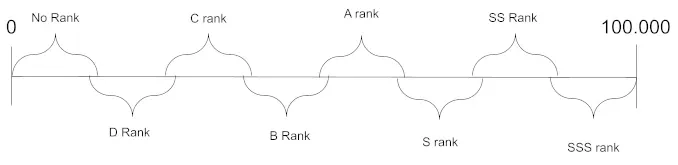
As you can see, they overlap. I did this because otherwise players can switch between 2 ranks quickly and it doesn’t look visually good. For example, if a player is on the A rank and reaches the limit of A rank then visuals switches to S rank, but to drop from S rank to A rank you need to get a lower point value than A rank’s upper limit.
Setting up both lower and upper limit for each rank can be tedious, so I’ll just set up a lower limit and then calculate the upper limit. Let’s say these are the lower limits, and upper limits are the 101% of the next rank’s lower limit.
Here’s my limits:
D rank C Rank B Rank A Rank S rank SS rank SSS rank | | | | | | |
100 500 750 1000 1350 1750 2000And here’s the code:
public class StyleManager : MonoBehaviour{    //In the inspector fill these. We don't want it to be hard coded.    public List<int> StyleRankThresholds = new List<int>();    public float currentStylePoints;    public int currentRankIndex = 0;    void Update()    {        UpdateStyleRanks();    }
    void UpdateStyleRanks()    {        // Check for promotion to the next rank (Requires 101% of the next rank's lower limit to prevent rank flickering)        if (currentRankIndex < StyleRankThresholds.Count - 1)        {
            while (currentRankIndex < StyleRankThresholds.Count - 1 && currentStylePoints >= Mathf.RoundToInt(StyleRankThresholds[currentRankIndex + 1] * 1.01f))            {                currentRankIndex++;UpdateRanksUI();            }        }
        // Check for demotion to the previous rank (Drops down if points fall below 100% of the current rank's lower limit)        if (currentRankIndex > 0)        {
            while (currentRankIndex > 0 && currentStylePoints < StyleRankThresholds[currentRankIndex])            {                currentRankIndex--;UpdateRanksUI();            }        }    }
    void UpdateRanksUI()    {        //We will fill this later.    }
}
Also, make sure the first index in the StyleRankThresholds list is 0 for “No Rank”. This will be useful for UI later.
B. User Interface
Now we need to show players how well they are doing by displaying aforementioned Style ranks.
You can either choose to use a Sprite for each rank or a text. For this example I chose to use Sprites, but in my own game I use text based Ranks because text changes based on the language.
Additionally, we want the next rank level up bar, to show players how many points they need to get into the next rank.
public class StyleManager : MonoBehaviour{    // In the inspector fill these. We don't want it to be hard coded.    public List<int> StyleRankThresholds = new List<int>();    public float currentStylePoints;    public int currentRankIndex = 0;
    // Make sure Index 0 (no rank) is empty in RankImages.    public List<Sprite> RankImages = new List<Sprite>();    public Image RankImageDisplay;    public Slider ScoreBar;
    void Update()    {     //Rest of the code.        UpdateScoreBar();    }

    void UpdateScoreBar()    {        if (ScoreBar == null) return;
        if (currentRankIndex < StyleRankThresholds.Count - 1)        {            float minPoints = StyleRankThresholds[currentRankIndex];            float maxPoints = Mathf.RoundToInt(StyleRankThresholds[currentRankIndex + 1] * 1.01f);
     ScoreBar.maxValue = maxPoints;     ScoreBar.minValue = minPoints;            ScoreBar.value = currentStylePoints;
        }        else if(currentRankIndex == StyleRankThresholds.Count - 1) //Player is at max rank        {     float sssMin = StyleRankThresholds[currentRankIndex];     ScoreBar.minValue = sssMin;      ScoreBar.maxValue = sssMin + 500f; //Extra buffer at the top of SSS      ScoreBar.value = currentStylePoints;        }    }
    void UpdateRanksUI()    {        if (currentRankIndex < RankImages.Count)        {            RankImageDisplay.sprite = RankImages[currentRankIndex];            RankImageDisplay.enabled = (RankImages[currentRankIndex] != null);        }    }}
Now, this is not a UI Design tutorial, and I’m not a UI Designer anyway. I want to mainly focus on how to implement the mechanics instead. That being said, I still suggest you improve your game feel on UI.
Try adding some basic visual effects when the rank changes like scaling, stretching particles and/or maybe even a frame by frame animation. Take a look at other games to find some inspiration.

 Devil May Cry 5 and Hi-Fi Rush
5. Seeing It in Action
I built this exact architecture for my upcoming hack-and-slash game, Cenk The Chopper, where you can see the combo tracking, decay mechanics, and ranking feed running in full combat.
If you found this breakdown helpful or want to support my solo dev journey, checking it out and adding it to your Steam Wishlist helps out immensely!
https://store.steampowered.com/app/3122450/Cenk_The_Chopper/