How to make Blood Decals like ULTRAKILL in Unity
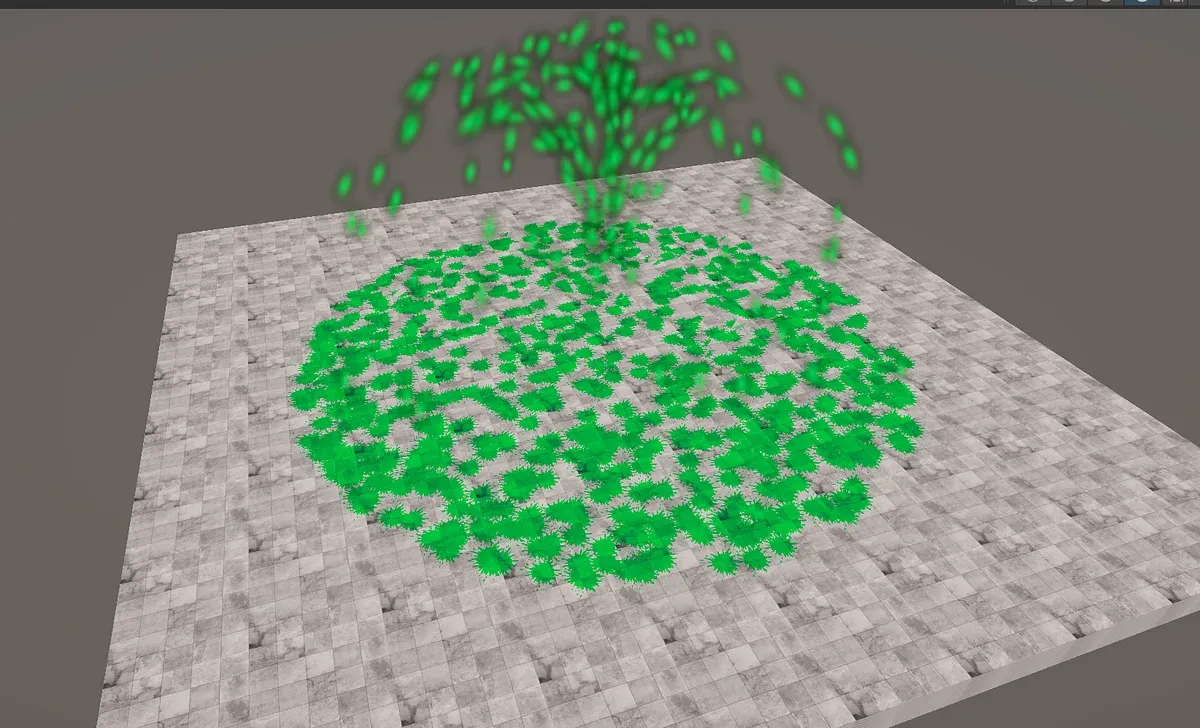
I saw this Blood Decal System in ULTRAKILL and I wanted to recreate and share it.
I also used this system in my own game, “Cenk The Chopper”
Check out in Steam:
https://store.steampowered.com/app/3122450/Cenk_The_Chopper/
We’ll cover; Particle collision detection, Object pooling, Materials, Shaders and Draw calls.
Let’s dive in.
1. Detect the Blood Particle Positions
First of all we’ll use Unity’s Particle System, and make sure you enabled the “Send Collision Messages” in the Collision tab.
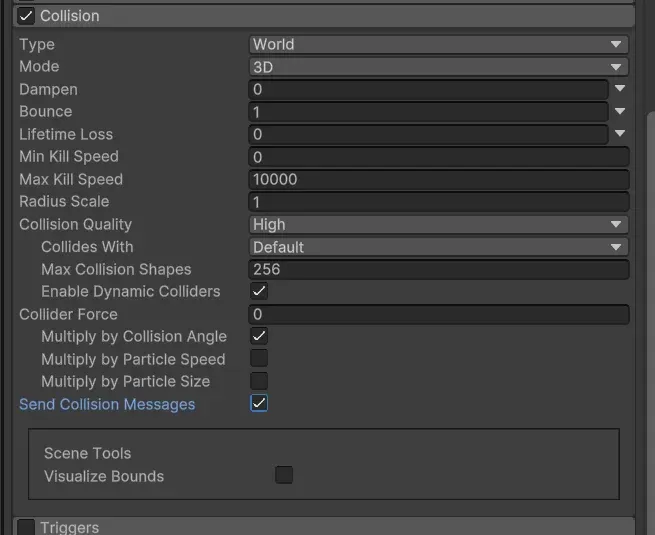
After that, whenever any of our particles collides, the “OnParticleCollision” function will be called in our monoBehaviour script.
Speaking of MonoBehaviour, we’ll use this code to debug particle hit locations. Make sure to attach your code to particle game objects.
using UnityEditor;
public class ParticleDetectCollision : MonoBehaviour{   public ParticleSystem part;   public List<ParticleCollisionEvent> collisionEvents;
   void Start()   {       part = GetComponent<ParticleSystem>();       collisionEvents = new List<ParticleCollisionEvent>();   }
   void OnParticleCollision(GameObject other)   {       ParticlePhysicsExtensions.GetCollisionEvents(part, other, collisionEvents);
       foreach (var item in collisionEvents)       {           DisplayCollisionPoint(item);       }
   }
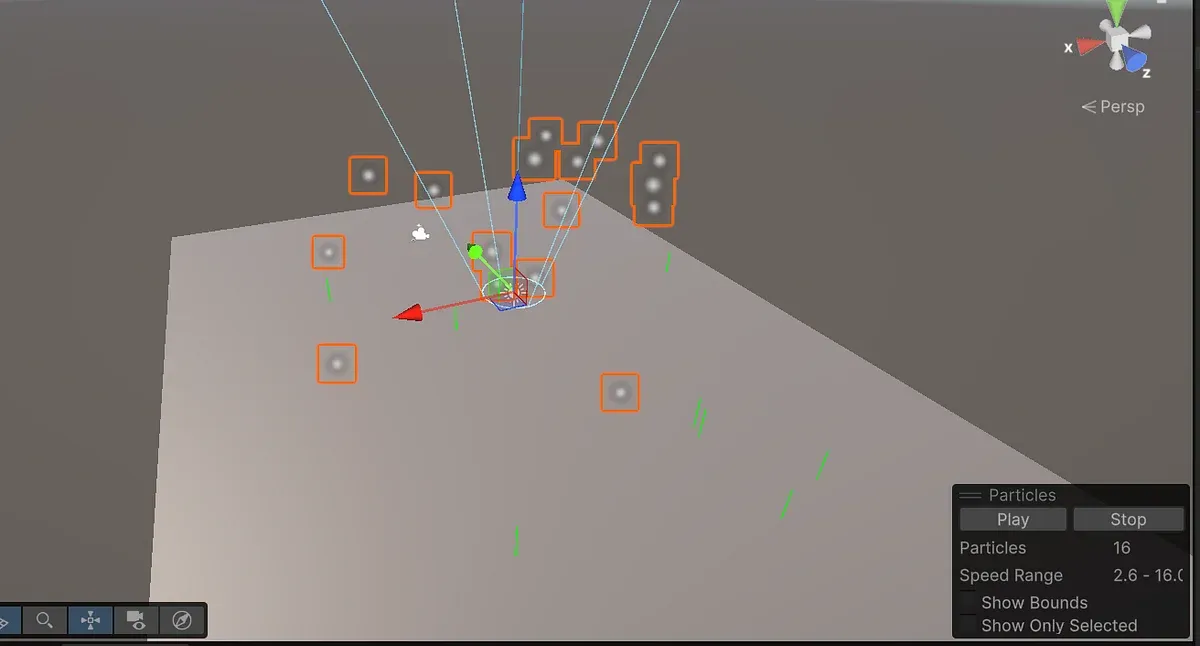
   void DisplayCollisionPoint(ParticleCollisionEvent item)   {       Debug.DrawRay(item.intersection, Vector3.up, Color.green, 1);   }}
If it work there should be green lines apearing on the spot where particles hit.
2. Spawning the decals
Create a Quad object with right click then apply a basic material and texture to it. Then turn it into a prefab.
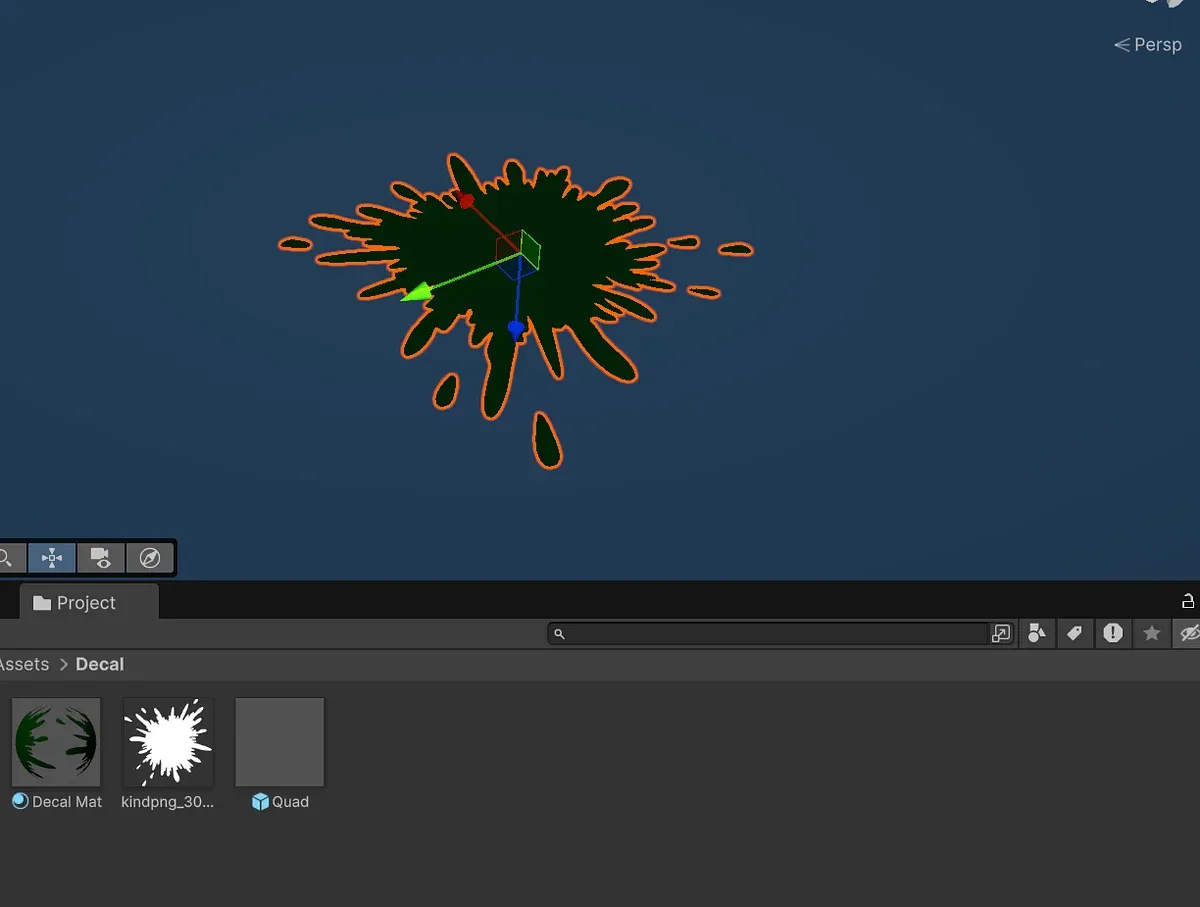
Notice the direction of the front face for Quad. It’s -Z, don’t forget it.
Now we’ll modify our code to spawn these decals.
//Put the prefab we just created here in the inspectorpublic GameObject DecalPrefab;
void OnParticleCollision(GameObject other){   ParticlePhysicsExtensions.GetCollisionEvents(part, other,                   collisionEvents);
   foreach (var item in collisionEvents)   {       SpawnDecal(item);   }
}
void SpawnDecal(ParticleCollisionEvent item){   //We give negative normal as forward,   //so the decal is rotated like we wanted   Quaternion qua = Quaternion.LookRotation(-item.normal, Vector3.up);
   GameObject spawnedDecal = Instantiate(DecalPrefab, item.intersection, qua);

}
After that our particles now spawn bunch of decals. If you don’t like the size of your decals you can edit it in prefab.
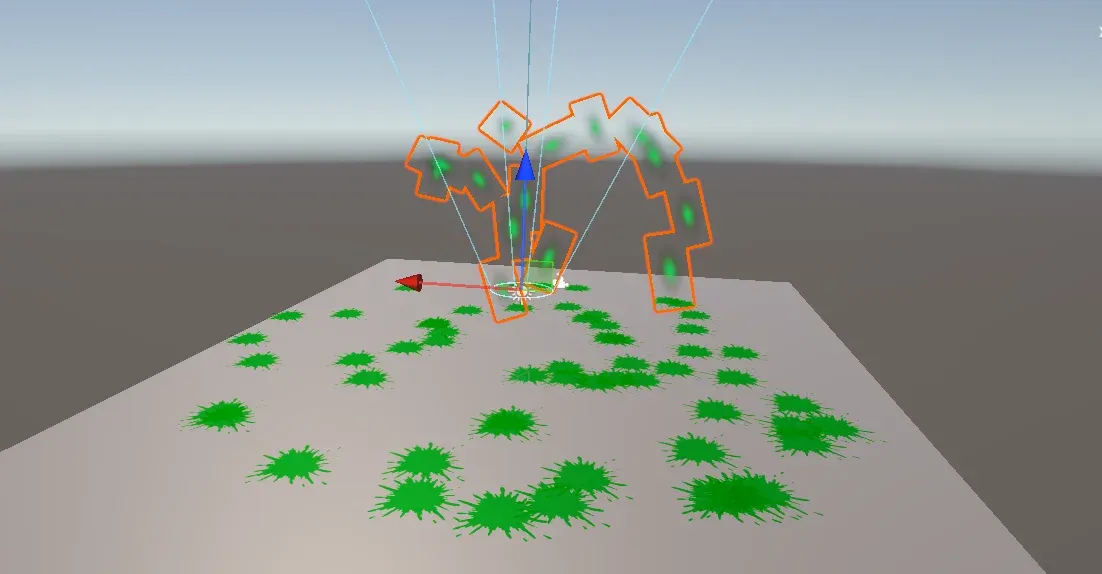
3. Management
Now there are some problems with this system.
There’s no delete button.
There’s no limit.
And sometimes it spawns 2 or more decal in the same spot.
So we need to make a manager to control this.
First, create a new MonoBehaviour script, and add it to a manager object.
Second, make the script singleton so we can access it in particle script.
Third, move spawning decal functions in the manager script.
using UnityEngine;using System.Collections;using System.Collections.Generic;
public class DecalManager : MonoBehaviour{   //Singleton   public static DecalManager instance;
   private void Awake()   {       if (instance \== null)           instance \= this;   }
   //Spawning decals   public GameObject DecalPrefab;
   public void SpawnDecal(ParticleCollisionEvent item)   {       Quaternion qua \= Quaternion.LookRotation(-item.normal, Vector3.up);
       GameObject spawnedDecal \= Instantiate(DecalPrefab, item.intersection, qua);
       //We put the decal under the manager object, so it doesn't look ugly in the inspector       spawnedDecal.transform.SetParent(transform);
   }}
After that, we need to change your particle script to call this function in the decal manager instead.
void OnParticleCollision(GameObject other){   ParticlePhysicsExtensions.GetCollisionEvents(part, other, collisionEvents);
   foreach (var item in collisionEvents)   {      DecalManager.instance.SpawnDecal(item);   }
}
Now try it to see if it’s working.
Then we’ll make an object pool. You can use a method you like or implament this to your own object pool in the game. I’m just gonna make a quick object pool with a list.
//list to put all of the decalspublic List\<GameObject\> Decals;//Limit for decalspublic int DecalLimit \= 100;
public void SpawnDecal(ParticleCollisionEvent item){   //First check that if amount of decal is under the limit   if (Decals.Count \< DecalLimit)   {
       Quaternion qua \= Quaternion.LookRotation(-item.normal, Vector3.up);
       GameObject spawnedDecal \= Instantiate(DecalPrefab, item.intersection, qua);
       spawnedDecal.transform.SetParent(transform);
       //add the new created decal to list       Decals.Add(spawnedDecal);   }   else   {       //if not, move the first decal to last slot in the decal list       var obj \= Decals\[0\];       Decals.RemoveAt(0);       Decals.Add(obj);
       //then change that decal's position and rotation       Quaternion qua \= Quaternion.LookRotation(-item.normal, Vector3.up);       obj.transform.position \= item.intersection;       obj.transform.rotation \= qua;   }
}
4. Decal Shader and Material
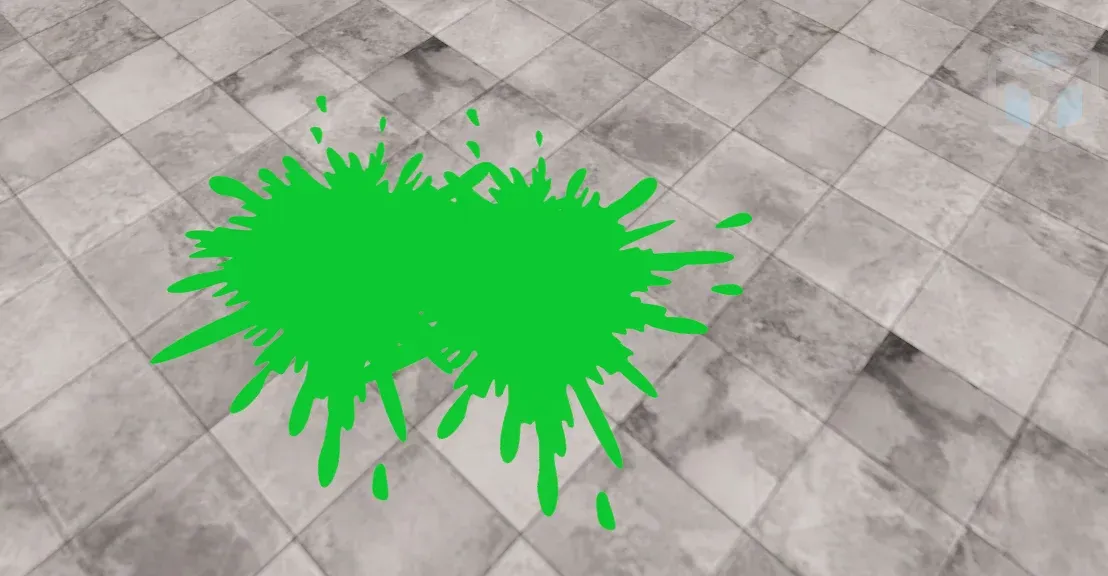
If you just applied a texture with basic material, decal might look like this. And it’s not great. The background texture isn’t visible and players can lost their depth perception with the environment.
First of all, if you’re not on the Built-in render pipeline and you also don’t want to write a shader. Here’s a quick fix.
Chose unlit shader, set it transparant, set Blending Mode to Multiply, enable alpha clipping and adjust the threshold for your texure.
Also enable the GPU instancing, it’ll increase the performance.
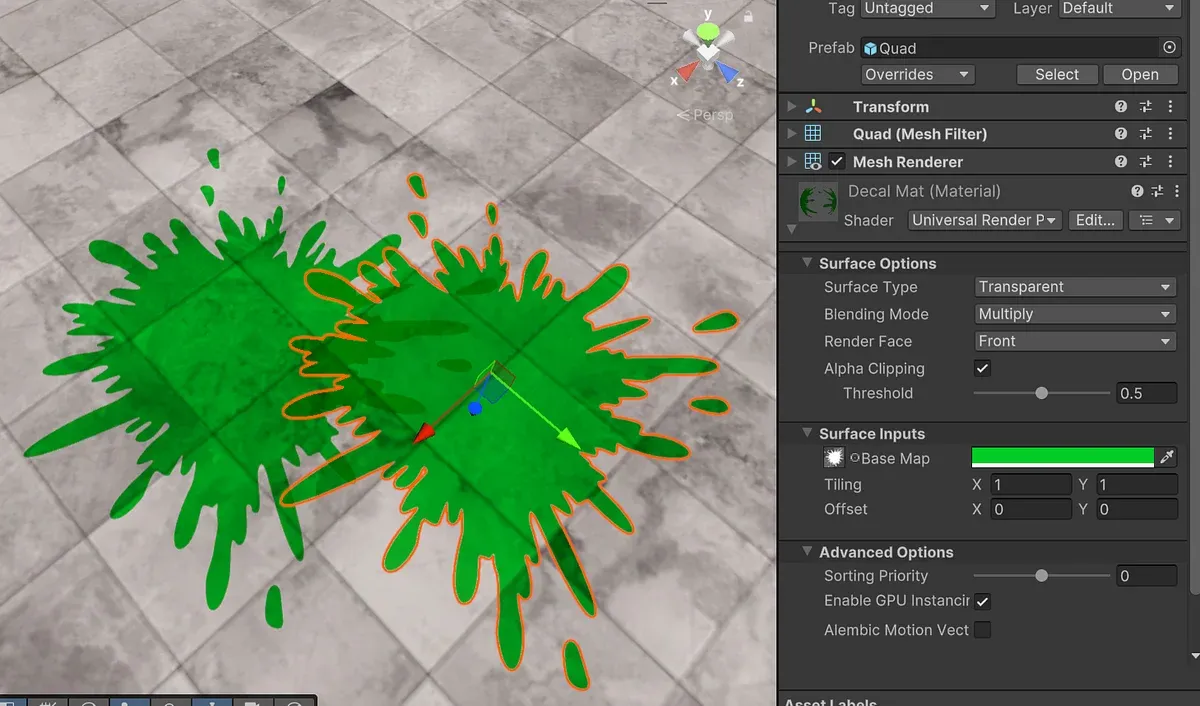
Now, if you’re on built-in render pipeline, doesn’t like the intersecition area between decals and/or want more performance; we need to write a shader.
Create an Unlit shader. Unlit because we don’t need to calculate light for this, multiplying is enough.
Properties{   \_MainTex ("Texture", 2D) \= "white" {}   \_Color ("Color", Color) \= (1,1,1,1) //Add this for color   \_Cutoff("Alpha cutoff", Range(0,1)) \= 0.5 //Add this for alpha cutout}SubShader{   //make sure you change tags to this, so transparancy works   Tags { "Queue"="AlphaTest" "IgnoreProjector"="True" "RenderType"="TransparentCutout"}
   Pass{
     ZWrite Off     Lighting Off     Cull Off     //Blend     BlendOp Min     Blend SrcAlpha OneMinusSrcAlpha     Blend DstColor SrcColor
     CGPROGRAM     \#pragma alphatest:\_Cutoff
     ...
     fixed4 frag (v2f i) : SV\_Target     {       // sample the texture       fixed4 col \= tex2D(\_MainTex, i.uv);       col \*= \_Color; //Multiply the Texture with the color       clip(col.a \- \_Cutoff); //Cut the pixels if they don't match the cutout alpha threshold       // apply fog       UNITY\_APPLY\_FOG(i.fogCoord, col);       return col;     }     ENDCG   }
}
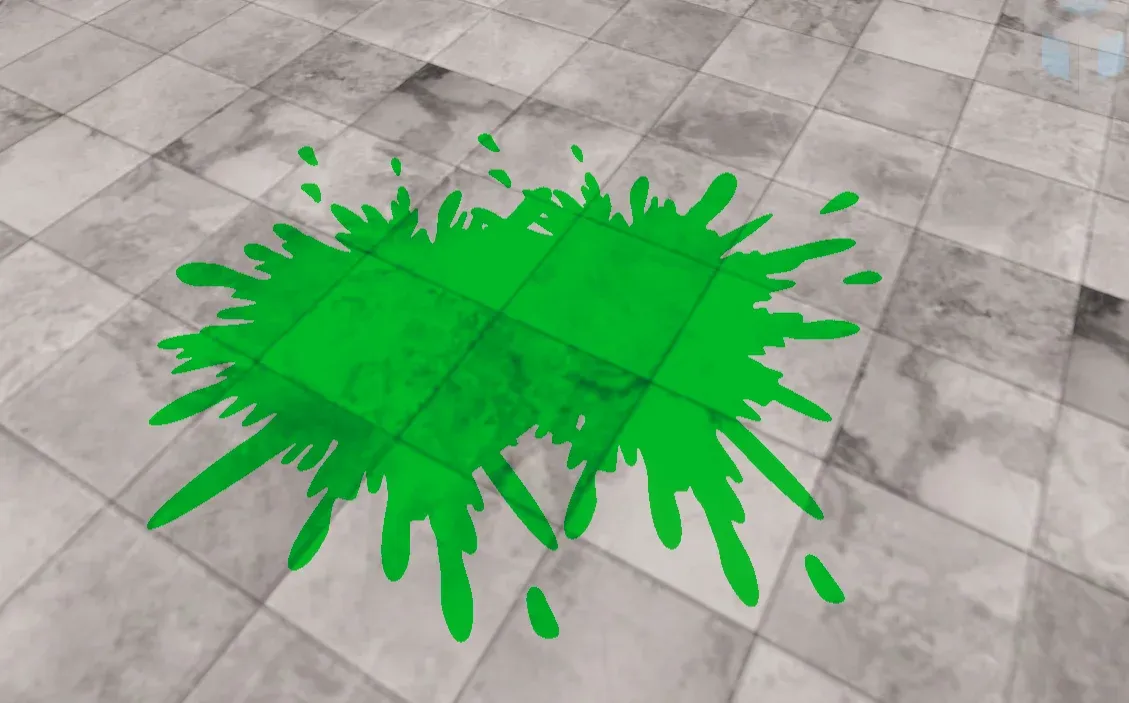
If you write it correctly this should be the result. As you can see the decals overlapping is not visible.
5. Optimization
Draw Calls
What we’re gonna do now for optimization is complately change the spawn system. Instead of spawning GameObject which have renderer object to render them, we’ll store the position and rotation of each decal then render them with a single call in code.
I know it’s sounds complicated, especially if you never done so. But the performance gain is worth.
//Drawing Calls\[System.Serializable\]public struct DecalInfo{   public Vector3 Pos;   public Quaternion Rot;
}public List\<DecalInfo\> decalInfos;public Mesh instanceMesh;public Material instanceMaterial;
Now first, since there’s no GameObjects we need to make our own variable with Struct, and make a list out of that. This will store data for each Decal.
Then we’ll make a function to make Draw Calls. And put it in Update so it works every frame.
void Update(){
   RenderDecals();}
void RenderDecals(){   //If no decals return   if (decalInfos.Count \== 0\) return;
   //Set up matrices with position, rotation and scale.   Matrix4x4\[\] matrices \= new Matrix4x4\[decalInfos.Count\];   for (int i \= 0; i \< decalInfos.Count; i++)   {       matrices\[i\] \= Matrix4x4.TRS(decalInfos\[i\].Pos, decalInfos\[i\].Rot, Vector3.one);       //I made the Scale 1,1,1 Instead of storing it in individual index.   }
   //This is to override some of the thing from the Material. Even if we don't use it we still need it.   MaterialPropertyBlock MPB \= new MaterialPropertyBlock();
   //Draw calls   Graphics.DrawMeshInstanced(instanceMesh, 0, instanceMaterial, matrices, decalInfos.Count, MPB);
}
There are lots of parameters for the DrawMeshInstanced() Funciton.
I didn’t fill all of them but you may need them, so check out the document:
https://docs.unity3d.com/6000.2/Documentation/ScriptReference/Graphics.DrawMeshInstanced.html
Now let’s change how the decals added to list. Instead of creating a prefab we’ll just create a new DecalInfo then add it to new list.
public void SpawnDecal(ParticleCollisionEvent item){
       if (decalInfos.Count \< DecalLimit)       {           Quaternion qua \= Quaternion.LookRotation(-item.normal, Vector3.up);
           DecalInfo di \= new DecalInfo();           di.Pos \= item.intersection;           di.Rot \= qua;
           decalInfos.Add(di);       }       else       {           var obj \= decalInfos\[0\];
           decalInfos.RemoveAt(0);           //apply the new position and rotation           Quaternion qua \= Quaternion.LookRotation(-item.normal, Vector3.up);           obj.Pos \= item.intersection;           obj.Rot \= qua;
           decalInfos.Add(obj);

       }
}
GPU Instancing
Now let’s try it. In the Inspector put default Quad mesh in instanceMesh, and for the instanceMaterial use a material that has GPU Instancing. If you don’t nothing will render.
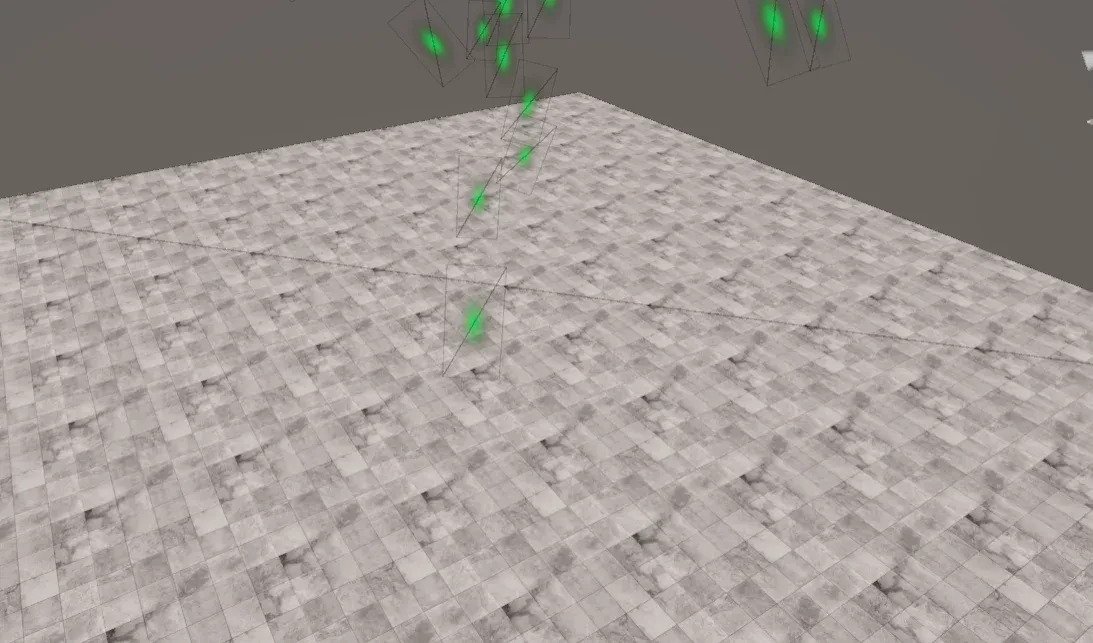
I created a default material with just GPU Instancing enabled. And it works.
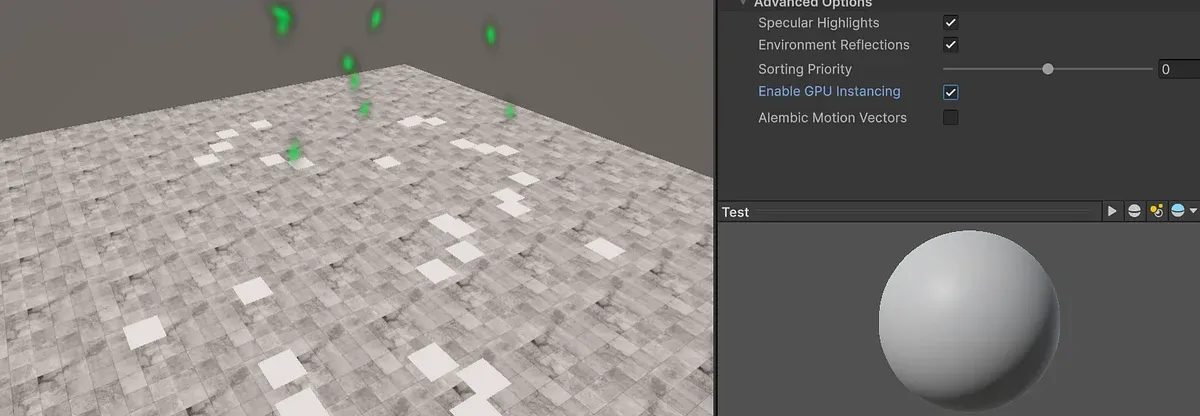
If you are using one of the default Shaders and didn’t write your own. There should be this option. Enable it and it should work.
But If you did write a Shader this option is probably isn’t there. So let’s write it.
CGPROGRAM
\#pragma vertex vert\#pragma fragment frag// make fog work\#pragma multi\_compile\_fog
\#pragma multi\_compile\_instancing // ADD THIS TO ENABLE GPU INSTANCING
\#include "UnityCG.cginc"\#pragma alphatest:\_Cutoff
struct appdata{   float4 vertex : POSITION;   float2 uv : TEXCOORD0;   UNITY\_VERTEX\_INPUT\_INSTANCE\_ID // ADD THIS FOR INSTANCE ID};
struct v2f{   float2 uv : TEXCOORD0;   UNITY\_FOG\_COORDS(1)   float4 vertex : SV\_POSITION;   UNITY\_VERTEX\_OUTPUT\_STEREO //This is something to do with VR add it just in case.};
v2f vert (appdata v){   v2f o;
   UNITY\_SETUP\_INSTANCE\_ID(v); // Creates an ID for instance   UNITY\_INITIALIZE\_VERTEX\_OUTPUT\_STEREO(o);
   o.vertex \= UnityObjectToClipPos(v.vertex);   o.uv \= TRANSFORM\_TEX(v.uv, \_MainTex);   UNITY\_TRANSFER\_FOG(o,o.vertex);   return o;}
Make sure you don’t forgot the Instance id, otherwise all decals be in one place.
6. The End
Thanks for reading. I hope this tutorial was helpful. Here are the project files and a link to my game where you can see this system in action.
Github Repo of the project:
https://github.com/Aldebaran38/BloodDecalSystem
Don’t forget to check out my game “Cenk The Chopper” in Steam:
https://store.steampowered.com/app/3122450/Cenk_The_Chopper/